
 Homemanager Docs
Updating System Software
How to safely update Homebridge Core, Homebridge UI, Node.js LTS, and plugins: Step-by-step instructions for Homemanager, the web interface, and the terminal.
Updating System Software
A complete Homebridge setup consists of several distinct software components:
- Homebridge (Core): The background service handling HomeKit accessory protocol (HAP) communication and running your plugins.
- Homebridge UI (including API): The web dashboard and service interface (
homebridge-config-ui-x) that browsers and mobile apps like Homemanager use to communicate with the server. - Node.js: The JavaScript runtime environment executing Homebridge and all installed plugins.
- Plugins: Individual integrations that connect specific accessories and smart home devices.
- Host operating system: The underlying system (such as Raspberry Pi OS, Debian, or macOS).
Regular updates resolve security issues, fix bugs, and maintain compatibility with newer iOS releases.
HOOBS users: On HOOBS, you do not need to update Node.js or system packages manually. HOOBS manages all components as a unified package and distributes updates through HOOBS Core Updates.
Before you begin: create a backup
Before applying major updates to Homebridge or Node.js, create a backup of your configuration:
- In Homemanager (Coming soon): Open the Backup tab to save your instance directly to iCloud Drive or locally on your iPhone or iPad.
- In the web interface: Click the three dots in the upper-right corner, select Backup / Restore, and download the archive to your computer.
If an update causes unexpected problems, you can restore your working setup immediately.
1. Managing and applying updates
Homebridge Core, Homebridge UI, Node.js, and plugins are maintained separately.
Updating in Homemanager
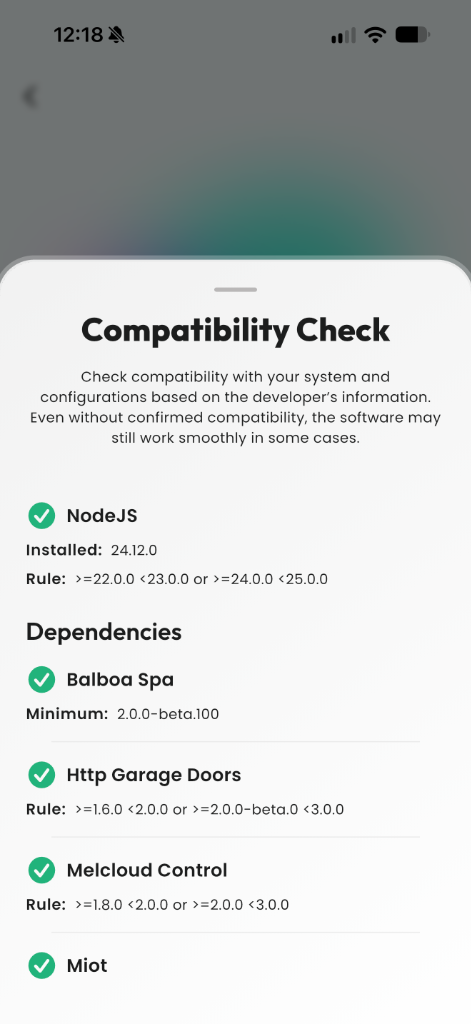
In Homemanager, you can manage system software and plugins directly on your iPhone or iPad. Before applying an update, the app always runs an automatic Compatibility Check:
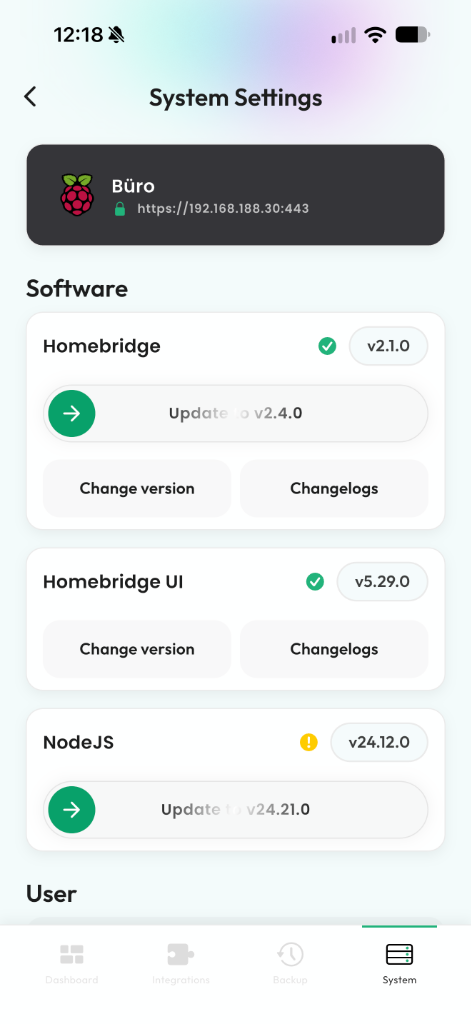
- System components: Open the System tab and select Software. Homemanager displays Homebridge (Core), Homebridge UI, and Node.js with their currently installed versions.
- Direct updates: When an update is available for any component, tap Update to v.... This applies to Homebridge and the web interface as well as Node.js.
- Automatic compatibility check: Before running the update, Homemanager verifies target version requirements against your installed plugins and dependencies. You see right away whether any plugin rules conflict with the new version.
- Version switching & changelogs: Tap Changelogs to review release notes. Tap Change version to switch to an earlier release for testing or rollbacks.
- Updating plugins: Manage your integrations and plugins in the Integrations (or Updates) tab. You can review release notes and trigger installations directly there.
Updating via the web interface
- Open the Homebridge web interface in your browser (default port
8581). - Yellow badges in the top navigation bar and on the Plugins page highlight available updates.
- Click Update to review the release notes.
- Confirm the installation. Homebridge restarts the service once the packages are downloaded. (Note: For Node.js updates, you can use the built-in terminal directly in the web interface.)
Updating via the terminal
Connect via SSH or use the built-in terminal in the web interface to update packages manually:
sudo npm install -g --unsafe-perm homebridgesudo npm install -g --unsafe-perm homebridge-config-ui-xRestart the background service once the update completes:
sudo hb-service restart2. Updating Node.js safely (LTS)
Homebridge runs on the Node.js runtime. For long-term stability, stick to official LTS (Long Term Support) releases such as Node.js 20 or 22. Odd-numbered releases (like 21 or 23) are short-lived development branches that often break compatibility with plugins.
Updating Node.js in Homemanager
Homemanager lets you update Node.js directly from your iPhone or iPad:
- Open the System tab and navigate to Software.
- If an update is available or required, tap Update to v....
- Following the automatic compatibility check, Homemanager executes the installation command on the server in the background. If your setup requires manual permission steps, the app displays the exact terminal commands needed.
Manual terminal updates (without the app)
For Linux and Raspberry Pi systems, use the official Homebridge utility sudo hb-service update-node. System package repositories (apt) on Debian often distribute outdated Node.js versions or alter paths used by Homebridge:
# Automatically update to the latest recommended LTS release
sudo hb-service update-node

# Or target a specific LTS major version
sudo hb-service update-node 22
This command identifies the recommended LTS version, downloads and installs the binaries, and rebuilds any native plugin modules that require recompilation. You can run this command via SSH or directly inside the built-in terminal of the Homebridge web interface.
Docker installations: In Docker environments (such as on a Synology NAS or Unraid), do not run update-node inside the container. Pull the latest container image instead:
docker compose pull && docker compose up -d3. Keeping the host system updated
The underlying operating system also requires periodic updates for security patches and network drivers.
On a Raspberry Pi, run the package updates via SSH:
sudo apt update && sudo apt upgrade -yIf a Linux kernel update was installed during the process, restart the machine (sudo reboot).
Detailed instructions and environment-specific commands for other host systems are covered in our installation guides:
- Raspberry Pi setup & maintenance
- Docker & container image updates
- Synology NAS setup
- macOS installation
- Windows installation
Troubleshooting after updates
If Homebridge fails to start or gets stuck in a restart loop after an update, inspect the server logs to pinpoint the issue:
Rebuilding native modules (NODE_MODULE_VERSION)
If your log displays a NODE_MODULE_VERSION mismatch error, a plugin depends on a native C++ module compiled for a previous Node.js version. Run the rebuild command:
sudo hb-service rebuildRolling back a version
If a newly installed Core, UI, or plugin release introduces issues:
- In Homemanager: Open System > Software, tap Change version on the affected component, and select the previous version.
- Via terminal: Reinstall a specific version explicitly using npm:
sudo npm install -g --unsafe-perm homebridge@2.1.0 - Alternatively, restore the backup you created earlier.
Child Bridges
Isolate plugins, prevent server crashes, and bypass HomeKit's 150-accessory limit. Step-by-step setup for Homemanager, the web UI, and config.json.
Fixing "No Response" & Clearing Cache
How to fix 'No Response' errors in Apple Home: check logs, change mDNS advertiser, clear accessory cache, and reset pairing.