
 Homemanager Docs
Pairing with Apple Home
Connect Homebridge to the Apple Home app: scan QR codes, enter manual setup PINs, resolve uncertified accessory warnings, and fix common pairing errors.
Connect Homebridge to Apple Home
Once your Homebridge server is set up, you can link it to your Apple home. Your iPhone or iPad communicates directly with the bridge over your local network. After pairing, all configured accessories appear in the Apple Home app and work alongside native HomeKit devices via Siri, physical switches, and automations.
Prerequisites
Before pairing, make sure your home network meets these basic conditions:
- Your iPhone or iPad must connect to the same Wi-Fi network as the Homebridge server.
- Avoid guest Wi-Fi networks. Guest networks isolate client devices from one another, which blocks Apple Home from discovering the bridge.
- An iPhone is enough for local control within your house. If you want to control devices remotely or run location-based automations, you need a HomePod or an Apple TV set up as a home hub.
Apple Home pairing or Matter pairing: Which should you choose?
Homemanager provides two pairing options for each bridge: Apple Home Pairing and Matter Pairing. Both bring your accessories into the Apple Home app, but they serve different use cases:
- Apple Home Pairing (Recommended for Apple users): This uses the standard HomeKit Accessory Protocol. It supports all device categories available in Homebridge, including lights, switches, cameras, TVs, and specialized sensors. If you manage your smart home primarily from an iPhone, iPad, Apple Watch, or with Siri, this option gives you the complete feature set.
- Matter Pairing: Matter is a cross-platform smart home standard. Pairing a bridge via Matter allows the same accessories to appear in Google Home or Amazon Alexa simultaneously without extra plugins. Keep in mind that not every plugin or integration supports Matter. Check the plugin details in Homemanager before choosing this method. Matter also does not yet support every device category that Homebridge offers.
For pure Apple setups, classic Apple Home Pairing remains the most reliable and capable choice.
Step-by-step pairing guide
You can link Homebridge using two methods: directly on your iPhone or iPad with Homemanager, or by using a computer browser to scan the screen.
Setting up directly on iPhone and iPad
When managing Homebridge on your mobile device, you cannot point your iPhone camera at your own screen. Homemanager lets you copy the 8-digit setup PIN with a single tap so you can paste it directly into Apple Home.
 Download Homemanager for free on iOS & iPadOS
Open the bridge in Homemanager
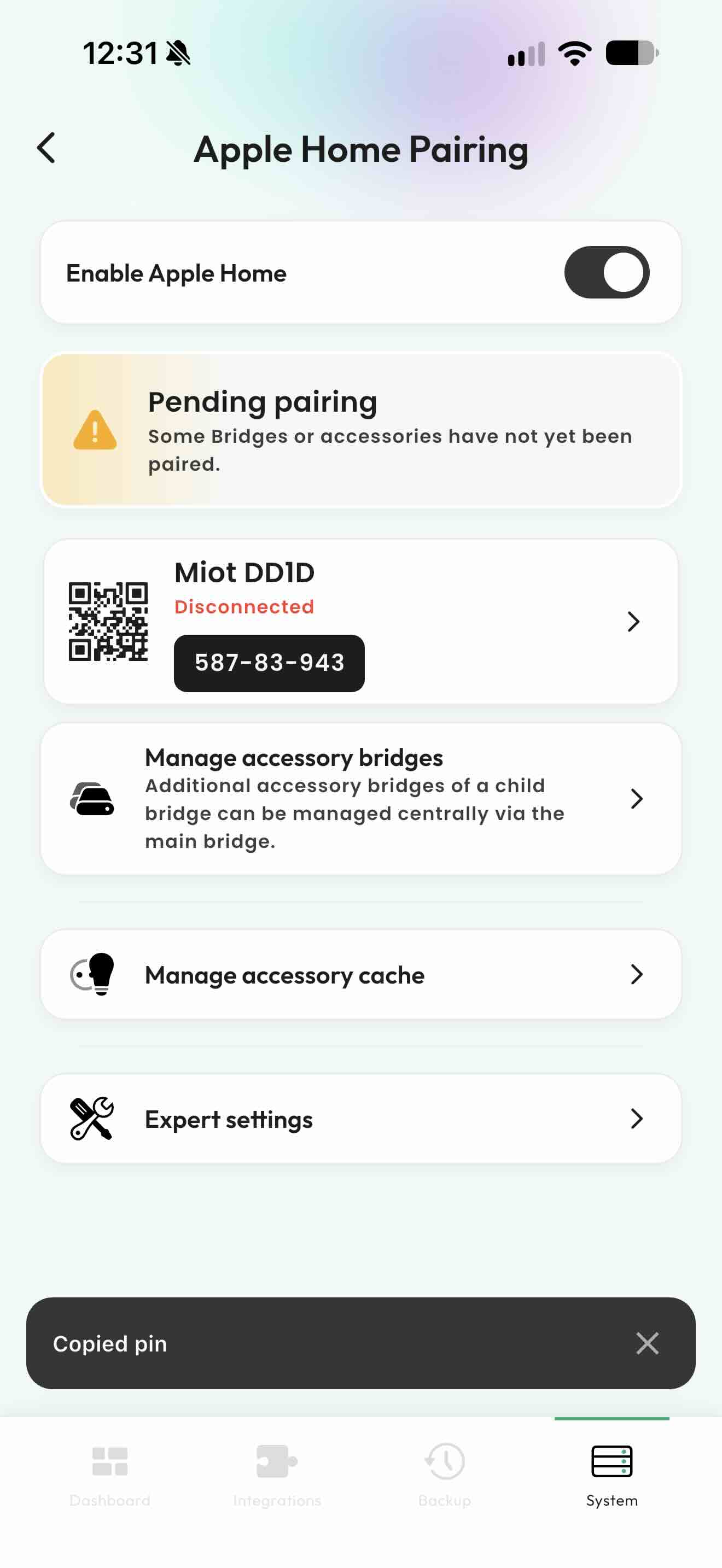
Open Homemanager and tap the System tab at the bottom. Select the bridge you want to pair (such as your main bridge or a child bridge) and tap Apple Home Pairing (or Matter Pairing).
A yellow banner appears if any bridges are waiting to be paired. Tap the 8-digit PIN (for example, 587-83-943) to copy it to your clipboard.
Open the Apple Home app
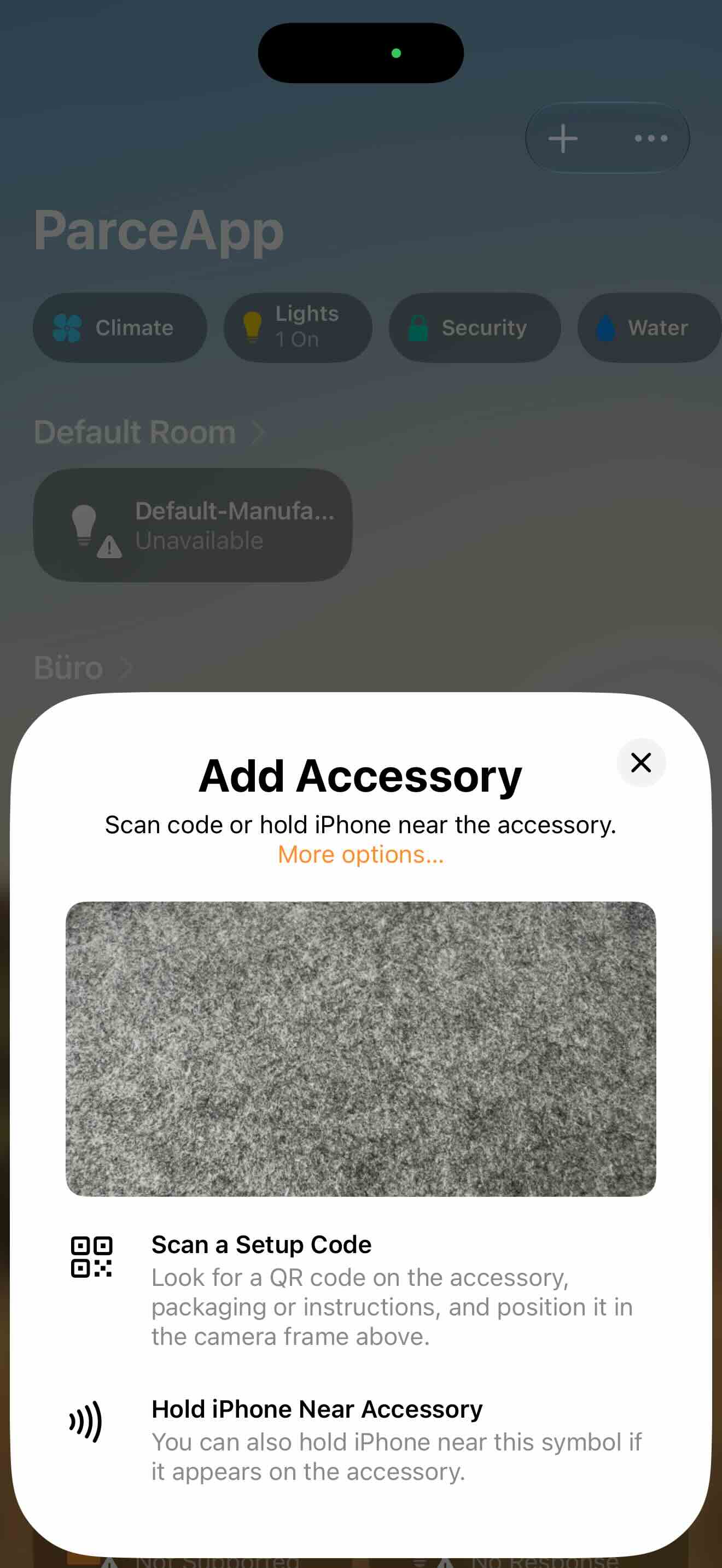
Switch to the Apple Home app on your iPhone or iPad. Tap the plus sign (+) in the top right corner and choose Add Accessory.
Choose More options
Tap the blue More options... link below the camera viewfinder.
Select your bridge and confirm the warning
Under the Nearby section, Apple Home lists discoverable bridges on your local network. Tap your Homebridge or child bridge.
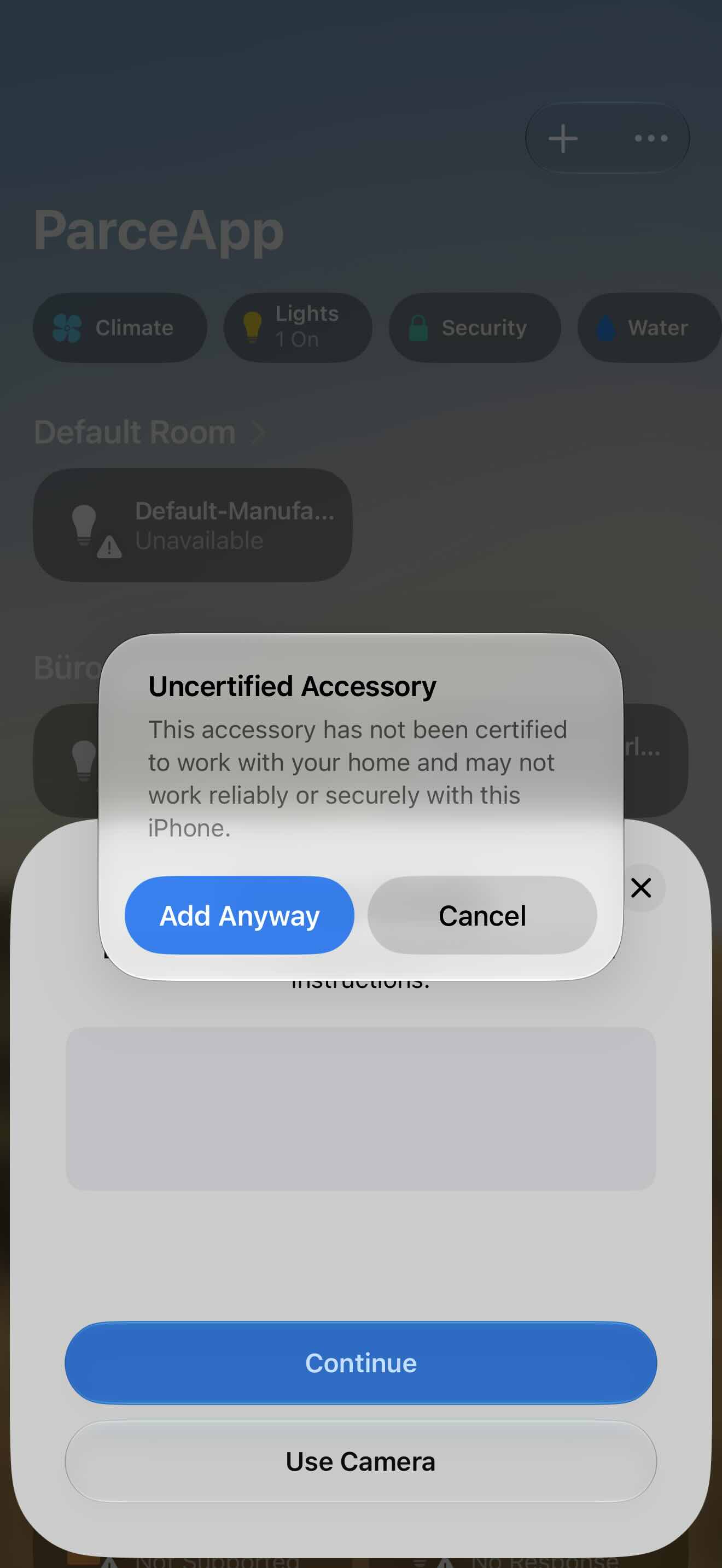
When the Uncertified Accessory prompt appears, tap Add Anyway.
Enter the setup code
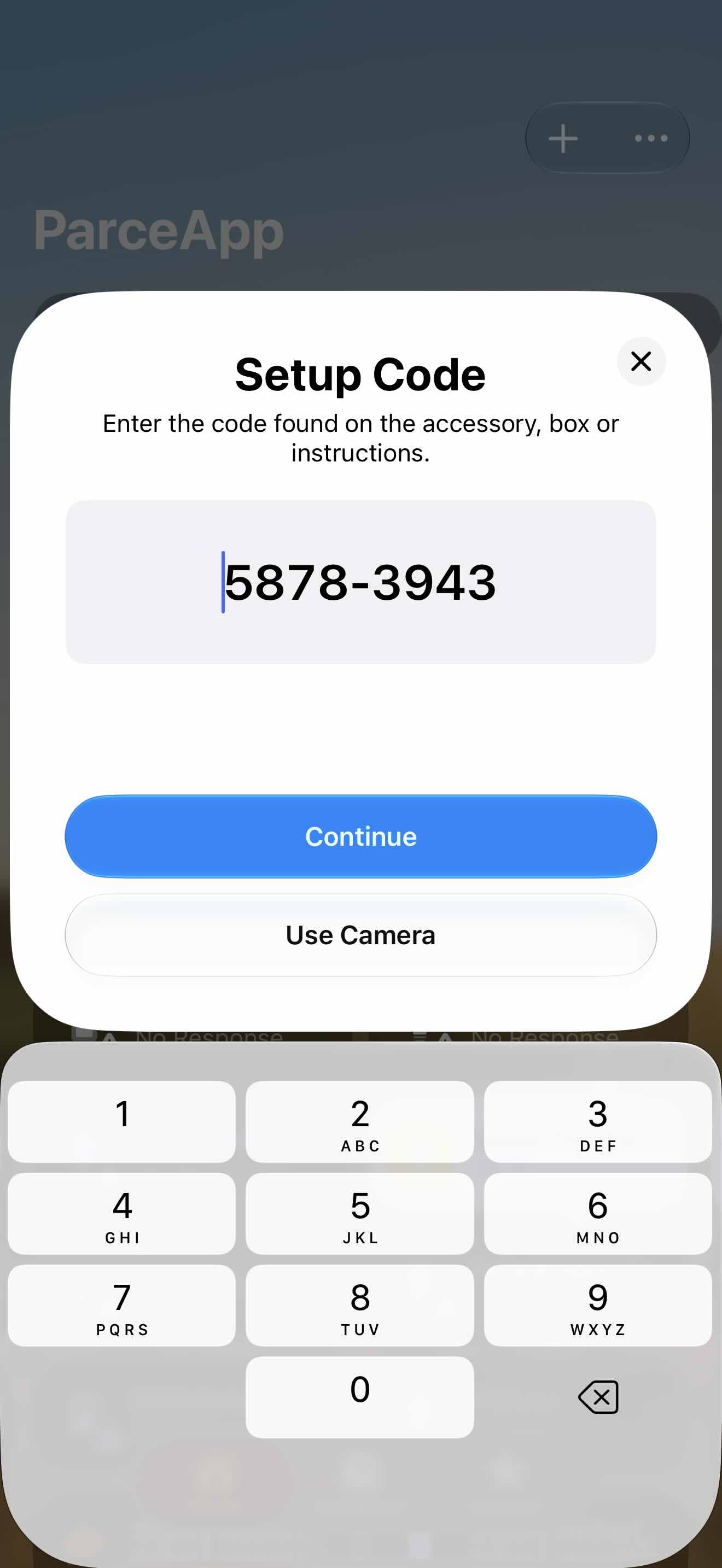
Tap the input field, paste or type the 8-digit setup PIN you copied earlier, and tap Continue.
Assign rooms and name accessories
Select a room for the bridge (such as Hallway or Utility Room). Apple Home then walks you through each discovered accessory so you can assign appropriate room names and types.
Scanning from a computer monitor
If you have the Homebridge web interface open on a Mac or PC, you can scan the pairing code directly from your display.
Open the web interface
Open the Homebridge dashboard in your desktop browser. The main page displays a large QR code alongside the 8-digit setup PIN (default: 031-45-154).
Scan the QR code
Open the Apple Home app on your iPhone or iPad. Tap the plus sign (+), choose Add Accessory, and center the camera on the QR code on your monitor.
Complete setup
Confirm the bridge location and assign the discovered accessories to their respective rooms.
Why does Apple display an "Uncertified Accessory" warning?
During the pairing process, Apple Home displays a security warning:
Uncertified Accessory
This accessory has not been certified to work with your home and may not work reliably or securely with this iPhone.
This message is expected. Apple reserves official certification badges for commercial hardware manufacturers who pay licensing fees. Homebridge is an open-source community project without proprietary hardware chips.
Your connection remains secure. All communication between Apple devices and Homebridge stays within your local network and follows standard HomeKit encryption. No private data leaves your network. Tap Add Anyway to proceed with the pairing.
Pairing child bridges separately
Homebridge lets you run individual plugins as isolated child bridges:
- Crash isolation: If one plugin encounters an error or loses its connection, the rest of your smart home continues running without interruption.
- Higher accessory capacity: Apple caps each bridge at 150 accessories. Running plugins as child bridges gives each one its own 150-device allowance.
Each child bridge operates as a distinct bridge on your network and requires its own setup code.
In Homemanager, go to System, select the relevant child bridge, and open Apple Home Pairing (or Matter Pairing). You will see the status marked as Disconnected along with its individual PIN. Tap the PIN, switch to Apple Home, and pair it through More options....
Helpful management tools in Homemanager
When you select a bridge under System and tap Apple Home Pairing, you will find several maintenance utilities below the pairing code:
- Manage accessory cache: When you delete or rename a device inside a plugin, it sometimes stays behind in Apple Home as an unreachable ghost accessory. The cache manager lets you remove individual stale records without resetting the entire bridge.
- Expert settings: Adjust network ports, switch the mDNS discovery engine, or reset the bridge identity if you need to re-pair.
Troubleshooting common pairing issues
Connecting Your Server
Connect Homebridge or HOOBS to Homemanager on iOS & iPadOS: Automatic mDNS discovery, initial user setup, manual IP configuration, and troubleshooting.
Choose Your System
Which server is best for Homebridge? Compare Raspberry Pi, Synology NAS, Docker, mini PCs, Mac, and Windows on power consumption and performance.