
 Homemanager Docs
Fixing "No Response" & Clearing Cache
How to fix 'No Response' errors in Apple Home: check logs, change mDNS advertiser, clear accessory cache, and reset pairing.
Fixing "No Response" in Apple Home
The "No Response" status in Apple Home usually occurs when a plugin process crashes, router multicast settings drop mDNS traffic, or stale accessory cache entries block communication.
Narrowing Down the Cause
Check which accessories are affected to isolate the cause:
- Only a single accessory is offline: The issue is with the physical device itself (dead battery, weak Wi-Fi reception, or wireless range limits).
- All accessories of a specific plugin are offline: The plugin child bridge crashed or lost its connection. Check the live log first.
- All Homebridge accessories are offline: The server process stopped, the local network blocks mDNS discovery, or the Apple Home hub (HomePod or Apple TV) stopped responding.
Step 1: Check Live Logs and Bridge Status
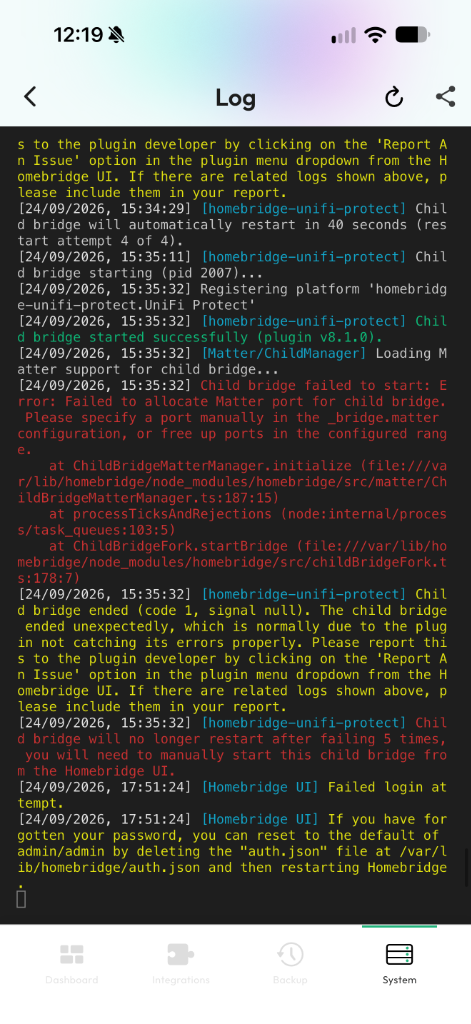
When a plugin encounters a fatal error, Homebridge restarts the child bridge up to five times. If each attempt fails, Homebridge stops the process. In Apple Home, those accessories then display "No Response".
- Open Homemanager on your iPhone or iPad.
- Tap the System tab at the bottom and select Log.
- Red log entries show the error (such as port allocation conflicts or failed logins). For persistent boot issues, see our guide on Troubleshooting Startup Errors.
- If the plugin runs as a child bridge, restart it directly from the bridge list. Learn how to isolate plugins in Setting Up Child Bridges.
- Open the Homebridge web interface in your browser.
- Check the status indicator for your child bridges on the dashboard.
- If a bridge shows red or stopped, open the Status tab to read the error details in the log.
- Restart the instance using the restart button on the plugin card.
Step 2: Switch the mDNS Advertiser
Homebridge advertises accessories across the local network using Multicast DNS (mDNS/Bonjour). Certain routers and mesh Wi-Fi setups (particularly AVM FRITZ!Box and UniFi hardware) drop these multicast packets over time when using the default Ciao advertiser.
Switching to Bonjour HAP resolves discovery drops on most home networks:
- Open Homemanager and tap the System tab.
- Select your bridge and open its bridge settings.
- Change the mDNS Advertiser from Ciao to Bonjour HAP.
- Save the configuration and restart the bridge.
- Open the Homebridge web interface and click Settings.
- Scroll down to Homebridge Settings.
- Change mDNS Advertiser to Bonjour HAP (on Linux hosts running the Avahi daemon, you can also choose Avahi).
- Click Save and restart Homebridge.
Tip for multiple network adapters: If your server runs on both Wi-Fi and Ethernet, or uses virtual Docker networks, Homebridge may send mDNS broadcasts through the wrong interface. In the Homebridge settings, specify your primary physical interface (such as eth0 or en0) under Network Interfaces.
Step 3: Check Router and Apple Home Hub Settings
When devices remain unreachable despite running services:
- Restart your Apple Home hub: When the active home hub (Apple TV or HomePod) stops responding reliably, restart the device through the Home app or unplug it for a few seconds.
- Allow client-to-client Wi-Fi communication: Ensure your router permits Wi-Fi devices to communicate with each other (disable client isolation). Do not run Homebridge on a guest Wi-Fi network.
- Enable multicast and IGMP snooping: Verify that options like IGMP Snooping or Multicast Enhancement are active in your router settings. On FRITZ!Box routers, enable "Optimize Wi-Fi transmission for live TV".
Step 4: Clear Ghost Accessories from the Cache
When you remove or rename accessories in a plugin, old entries can linger in Apple Home as unreachable tiles.
Cache vs. Pairing: The Difference
| Storage | Contents | Impact When Cleared |
|---|---|---|
Accessory Cache (accessories/) | Cached accessory names and state data. | Safe: Homebridge re-reads all active accessories on the next boot. Rooms, scenes, and automations in Apple Home remain intact. |
Pairing Keys (persist/) | Cryptographic pairing data linking Homebridge to Apple Home. | Destructive: Unpairs Homebridge from Apple Home. All accessories are removed from rooms and must be re-added. |
Removing Single Stale Accessories
- Open Homemanager on your iPhone or iPad.
- Tap the System tab at the bottom.
- Select the affected bridge and tap Apple Home Pairing.
- Open the Manage Accessory Cache section.
- Select the stale accessory from the list and delete it. Apple Home clears the tile the next time you open the app.
- In the Homebridge web interface, click the three-dot menu in the upper right corner.
- Select Manage Cached Accessories.
- Click Remove Single Accessory.
- Select the stale accessory, confirm with the trash icon, and restart Homebridge.
Emergency Fix: Reset Pairing
When Homebridge remains unreachable after IP address or configuration changes, resetting the pairing rebuilds the connection to Apple Home.
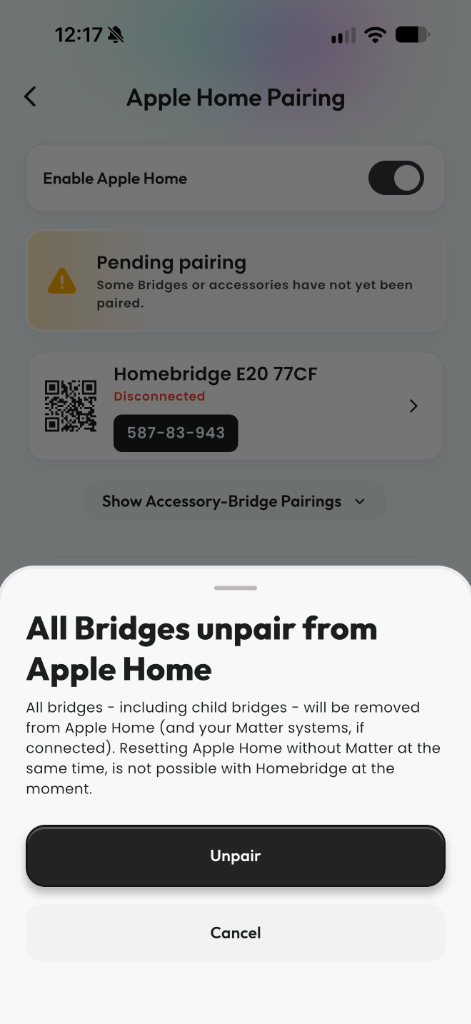
Resetting the pairing removes all associated bridges and accessories from Apple Home and disconnects any linked Matter fabrics. You will need to reassign rooms, scenes, and automations in Apple Home afterward.
In Homemanager, you can either reset an individual bridge or unpair all bridges at once:
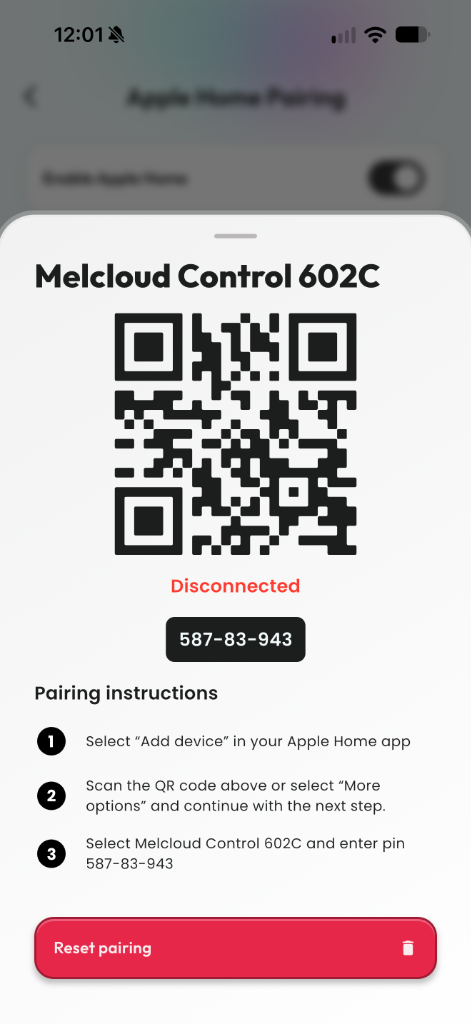
- Reset a single bridge: Under System, tap the affected bridge, open Apple Home Pairing, and scroll down to tap the red Reset pairing button. Only this bridge is reset, while all other bridges remain connected.
- Unpair all bridges: Tap Unpair in the Apple Home overview to remove the main bridge and all child bridges from Apple Home and Matter in a single step.
In the Homebridge web interface, unpair all bridges through settings:
- Open the Homebridge web interface in your browser.
- Click Settings in the top navigation.
- Scroll down and click Unpair All Bridges (or Reset Homebridge Accessory in older versions).
- Confirm the prompt and restart Homebridge.
- Homebridge generates a new setup PIN and identifier. Add the bridge back to Apple Home using the QR code on the dashboard.
For step-by-step instructions on re-adding your bridges, see Connecting Homebridge to Apple Home.
Updating System Software
How to safely update Homebridge Core, Homebridge UI, Node.js LTS, and plugins: Step-by-step instructions for Homemanager, the web interface, and the terminal.
Fix Startup Crashes & Read Logs
Resolve Homebridge startup crashes: inspect live logs in Homemanager or terminal, stop boot loops, and fix port conflicts or syntax errors.